
Pre-assign & schedule SIM cards
In this article you will learn how to activate SIM cards and assign Hardware to users.
Value
This new feature makes it possible to prepare and schedule the delivery of a new customer setup (if you are a partner) or onboard a new colleague starting on a specific date.
Click on the tabs below to learn more about how to activate SIM cards and assign hardware to users:
SIM cards
How to activate eSIM and Physical SIM cards on a user:
- Log in to the Admin portal.
- Click on Users.
- Select SIM card and Hardware.
- Select the user you want to add a new SIM card to.
- In the right-hand panel, click the plus sign under Main card.
- In the pop-up window, choose between eSIM and Physical SIM Card. We recommend using eSIM for convenience and sustainability. Make sure the user's phone supports eSIM before proceeding.

eSIM
- Select eSIM and click Confirm.

- You will be prompted to scan a QR code with your mobile phone. If you are unable to scan the QR code, you can enter the activation code manually instead.

Physical SIM card
- Select Physical SIM card and click Confirm.

- You will be prompted to enter the IMSI or ICC number.
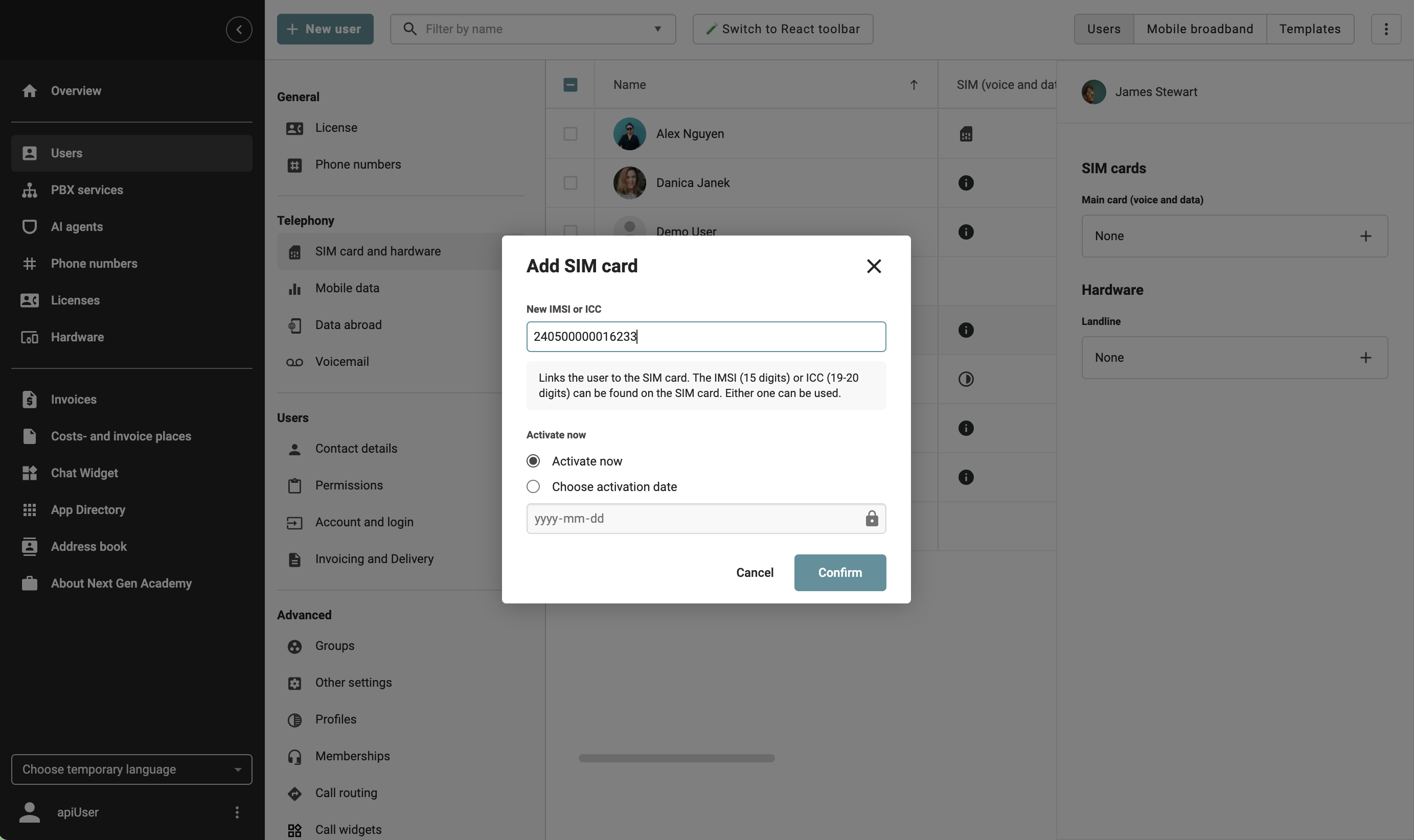
- Under Activate now you can choose when the SIM card should be activated:
- Active now - activates the SIM card immediately
-
Choose activation date - set a specific activation date.

If you activate a SIM card on a user that does not have a mobile licence, you will receive an information message under Main Card in the right-hand panel. The SIM card will not be activated until a mobile licence has been assigned to the user.
Please read FAQ article User creation & License management for more information on how to assign licenses to users.
SIM (voice and data)
Under the SIM (Voice and Data) tab, you can see the status of your SIM card via an icon. Here is what each icon means: